"EEEngine combines the sound quality of Class AB circuitry while maintaining the efficiency of Class D circuitry. Combining positive aspects of both Class AB and Class D may seem simple by concept, but it took years of extensive engineering efforts to achieve this technology on a mass production base."
Please see the linked white paper about Yamaha amplifiers.
Monday, January 19, 2009

Wednesday, January 14, 2009
Welcome to the Trainers on the Road "Tips branch"
Welcome to the Trainers on the Road "Tips branch".
I'm trying to gather technical information here and separate it from the main blog - Trainers on the Road. This will be able to provide better search option and categorized view.
This may take time but I will continue working and uploading new contents here.
I had not realized many people already visited this blog already until I checked Google Analytics today. Thank you for finding this page!
I'm trying to gather technical information here and separate it from the main blog - Trainers on the Road. This will be able to provide better search option and categorized view.
This may take time but I will continue working and uploading new contents here.
I had not realized many people already visited this blog already until I checked Google Analytics today. Thank you for finding this page!
Thursday, December 11, 2008
LS9 and M7CL Firmware Updated
Yamaha recently release firmware updates for the LS9 and M7CL series consoles. In addition, updated versions of the LS9 and M7CL editors were also released. For more information on the updates and to download the latest firmware, please visit the Firmware & Software Downloads page of the Yamaha Pro Audio website.
Monday, December 1, 2008
Can I get more DSP power on my M7CL when using an external Power supply?
The answer is no. When you choose to have an external power supply connected to your M7CL (PW800) what you are getting is a secondary power source, a back up power supply.
The PW800 will not give you any more DSP power, that means that you will not be able to get more GEQs or Effects on your M7CL.
The PW800 will not give you any more DSP power, that means that you will not be able to get more GEQs or Effects on your M7CL.
Tuesday, November 11, 2008
LS9 Online Seminar
Hi everyone, this is Shaun here from Japan.
How are you?
 Yamaha released LS9 Online Seminar on the YamahaProAudio.com.
Please click the link above and check it.
And the new Self Training page provides all links to the useful training materials in the YamahaProAudio.com.
How are you?
Yamaha released LS9 Online Seminar on the YamahaProAudio.com.Please click the link above and check it.
And the new Self Training page provides all links to the useful training materials in the YamahaProAudio.com.
Thursday, October 23, 2008
How can I get my fader flip and GEQ to open at the same time on my PM5D
When people are navigating the system they are always looking for the one button that will change multiple things at the same time. In a lot of cases that button will be your User Define Keys.
In this case will be the "Layer snapshot" option.
This will memorize the layer settings for the input channel faders, MIX encoders,
ENCODER MODE, DCA faders and METERS. First assign LAYER SNAPSHOT to
a USER DEFINED key, then configure all the layers in the desired way, and hold the
USER DEFINED key for 2 seconds until it lights up. Now every time that button is
pressed, it returns the layers to the chosen configuration.
If you want to be able to open your GEQ at the same time just have a group of freq from that GEQ assigned to your DCA faders at the moment you create the layer snapshot.
In this case will be the "Layer snapshot" option.
This will memorize the layer settings for the input channel faders, MIX encoders,
ENCODER MODE, DCA faders and METERS. First assign LAYER SNAPSHOT to
a USER DEFINED key, then configure all the layers in the desired way, and hold the
USER DEFINED key for 2 seconds until it lights up. Now every time that button is
pressed, it returns the layers to the chosen configuration.
If you want to be able to open your GEQ at the same time just have a group of freq from that GEQ assigned to your DCA faders at the moment you create the layer snapshot.
Tuesday, September 9, 2008
Yes it is finally here, the SB168-ES our Digital Snake

We now have a great option for people looking for a digital snake solution, our SB168 ES. The product has 16 inputs and 8 output in a 3 rack space box. The system is based on the EtherSound Technology, high-quality bidirectional multi-channel transmission capabilities, and its use of easily obtainable CAT5e cable. From there you just need to have the MY16-ES64 and MY16- EX mini-YGDAI cards to connect to a Yamaha digital console.
Well enough for now, how about if you look for us at AES?
We will be there presenting our new family member.
Hope to see you there.


Thursday, August 28, 2008
+48V doesn't work?
"+48V" of the input channel is turned on but its phantom power is not provided to my condenser microphone.
Please make sure Phantom Master switch is turned on.
(PM1D)
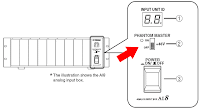 Front panel of AI8
(PM5D-RH)
 Rear panel of PM5D-RH
* PM5D doesn't have master switch
(DSP5D)
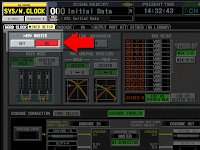 Mixer Setup screen
(M7CL)
 Setup screen
(LS9)
 System Setup screen
Please make sure Phantom Master switch is turned on.
(PM1D)
 Front panel of AI8
 Rear panel of PM5D-RH
* PM5D doesn't have master switch
(DSP5D)
 Mixer Setup screen
(M7CL)
 Setup screen
(LS9)
 System Setup screen
Friday, August 22, 2008
Assign a static IP address to your PC
Which is better to assign an IP address to my PC, automatic (DHCP) or static?
We recommend to assign a static IP address to your PC.
Automatic assignment from your network's DHCP server is very convenient, but usually the server update the assigned IP address every few hours and it would reset Studio Manager or DME Designer connection.
We recommend to assign a static IP address to your PC.
Automatic assignment from your network's DHCP server is very convenient, but usually the server update the assigned IP address every few hours and it would reset Studio Manager or DME Designer connection.
Windows XP
1 Select [Start] → [Control Panel].
The “Control Panel” is displayed.
2 If the “Control Panel” is in Category display, click [Switch to Classic View].
3 Double-click [Network Connections] → [Local Area Connection].
The “Local Area Connection Status” dialog box will be displayed.
4 Click [Properties] on the [General] tab.
The “Local Area Connection Properties” dialog box will be displayed.
5 Select [Internet Protocol (TCP/IP)] on the [General] tab, then click [Properties].
The “Internet Protocol (TCP/IP) Properties” dialog box will be displayed.
6 Click [Use the following IP address] on the [General] tab.
7 Enter your computer’s IP address into [IP address]***Do not use the same number as the console***, (i.e., 192.168.0.130), the Gateway’s IP address into [Default gateway], and “255.255.255.0” into [Subnet mask].
* When installing on the same subnet as the DME unit(s), set the gateway’s host address to 254.
8 Click [OK].
9 Restart your computer.
Thursday, August 21, 2008
Why is my console locked to 96kHz?
My PM5D is receiving digital audio via MY-slot and locking its word clock to the slot. The incoming digital audio is 48k but the console is locked to 96k. How do I change it to 48k?
Please go to Word Clock screen and select the MY-slot as a clock source. Then, change its Input/Output Format of the slot from "DOUBLE CHANNEL" to "DOUBLE SPEED". In a few seconds, the console will be locked to 48k.
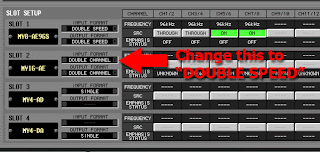
Please go to Word Clock screen and select the MY-slot as a clock source. Then, change its Input/Output Format of the slot from "DOUBLE CHANNEL" to "DOUBLE SPEED". In a few seconds, the console will be locked to 48k.

All 96k capable products, such as DM/0 series, DME series, and PM5D, may have this issue.
Wednesday, August 20, 2008
STEREO/MONO link - LS9
Do I need to go to the Master Layer to change my MONO output level?
Yes, you do.
The MONO master fader is on the Master layer and the Custom Fader layer when you assign the fader to it.
By the way, there is a preference for linking the MONO and the STEREO master faders.
If those levels are always controlled together, you can turn the preference on. By using digital attenuator in the EQ of the MONO or the STEREO master channel, you can change balance between those channels anytime.
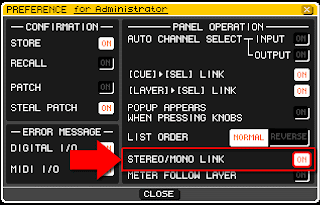
Yes, you do.
The MONO master fader is on the Master layer and the Custom Fader layer when you assign the fader to it.
By the way, there is a preference for linking the MONO and the STEREO master faders.
If those levels are always controlled together, you can turn the preference on. By using digital attenuator in the EQ of the MONO or the STEREO master channel, you can change balance between those channels anytime.

(LS9 Owner's Manual, p.195)
"This specifies whether STEREO channel and MONO channel on/off and fader operations will be linked.
If you turn this button on, the STEREO channel on/off setting will be copied to the MONO channel, and subsequently on/off operations will be linked. Faders will be linked while preserving the difference in level."
Tuesday, August 19, 2008
ALL PRE/POST - M7CL, LS9
How do I change the MIX1 to POST all input channels at once ?
Open the MIX SEND popup by pressing the TO MIX1 SEND LEVEL knob in the selected channel or overview screen. In the popup screen, you have "ALL PRE" and "ALL POST" button on the upper right corner.

Open the MIX SEND popup by pressing the TO MIX1 SEND LEVEL knob in the selected channel or overview screen. In the popup screen, you have "ALL PRE" and "ALL POST" button on the upper right corner.

Try REV-X reverb
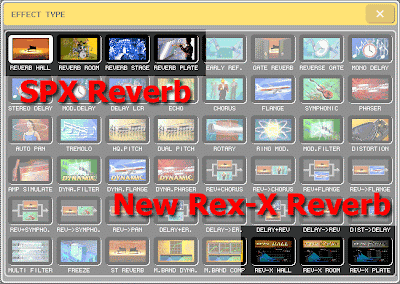
New REV-X algorithms are pre-installed to your PM1DV2, PM5D, PM5DV2, M7CL, LS9, and DM/0 VCM series. Yamaha add-on program is also available to some of other consoles to install Rev-X.
Try different characteristics of those reverb programs.
The following is from our "Add-on Effect" brochure:
"These reverb Add-on Effects employ the latest “REV-X” algorithms first introduced in Yamaha’s SPX2000 Professional Multi Effect Processor. The REV-X programs feature the richest reverberation and smoothest decay available, based on years of dedicated research and development.
REV-X Hall, REV-X Room, and REV-X Plate programs are provided, with new parameters such as room size and decay envelopes that offer unprecedented definition and finer nuance control. The REV-X Hall and REV-X Room programs have a very open sound, while REV-X Plate delivers a brighter tonality that is ideal for vocals. All models deliver dense, warm reverb that does not interfere with the natural timbre of the source."
Try different characteristics of those reverb programs.
The following is from our "Add-on Effect" brochure:
"These reverb Add-on Effects employ the latest “REV-X” algorithms first introduced in Yamaha’s SPX2000 Professional Multi Effect Processor. The REV-X programs feature the richest reverberation and smoothest decay available, based on years of dedicated research and development.
REV-X Hall, REV-X Room, and REV-X Plate programs are provided, with new parameters such as room size and decay envelopes that offer unprecedented definition and finer nuance control. The REV-X Hall and REV-X Room programs have a very open sound, while REV-X Plate delivers a brighter tonality that is ideal for vocals. All models deliver dense, warm reverb that does not interfere with the natural timbre of the source."
All Yamaha product tips, you will find here!
Tips for Yamaha mixing console and other products will be uploaded here!
Monday, August 18, 2008
Try REV-X reverb
New REV-X algorithms are available on your PM1DV2, PM5D, M7CL, LS9, DM/0 VCM series and some consoles with Yamaha add-on program installed.
Try different characteristics of those reverb programs.
The following is from our "Add-on Effect" brochure:
"These reverb Add-on Effects employ the latest “REV-X” algorithms first introduced in Yamaha’s SPX2000 Professional Multi Effect Processor. The REV-X programs feature the richest reverberation and smoothest decay available, based on years of dedicated research and development.
REV-X Hall, REV-X Room, and REV-X Plate programs are provided, with new parameters such as room size and decay envelopes that offer unprecedented definition and finer nuance control. The REV-X Hall and REV-X Room programs have a very open sound, while REV-X Plate delivers a brighter tonality that is ideal for vocals. All models deliver dense, warm reverb that does not interfere with the natural timbre of the source."
Try different characteristics of those reverb programs.
The following is from our "Add-on Effect" brochure:
"These reverb Add-on Effects employ the latest “REV-X” algorithms first introduced in Yamaha’s SPX2000 Professional Multi Effect Processor. The REV-X programs feature the richest reverberation and smoothest decay available, based on years of dedicated research and development.
REV-X Hall, REV-X Room, and REV-X Plate programs are provided, with new parameters such as room size and decay envelopes that offer unprecedented definition and finer nuance control. The REV-X Hall and REV-X Room programs have a very open sound, while REV-X Plate delivers a brighter tonality that is ideal for vocals. All models deliver dense, warm reverb that does not interfere with the natural timbre of the source."
Friday, August 15, 2008
Mocha VNC for iPhone and iPod
I've just found an application for iPhone.
Some of you would be interested.
Some of you would be interested.
Don't ask me how to setup.... I don't have an iPhone....
Phantom Power (+48V) switch? - M7CL/LS9
Where is a Phantom Power (+48V) switch for my input?
[ Using a User Defined Key ]
1. Open the USER DEFINED KEYS setup screen in the USER SETUP
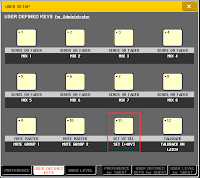
2. Setup "SET BY SEL", "SET [+48V]" to one of the User Defined Keys
3. Hold down the User Defined Key and use SEL key of the input channel to turn on/off its phantom power
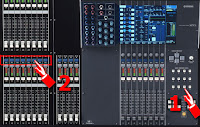
[ On the screen ]
1. In the Selected Channel screen, touch or press ENTER on HA gain control to open HA/PATCH popup
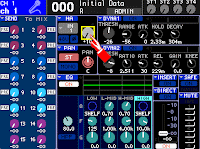
2. Touch or press ENTER on [+48V] button to turn on/off phantom power to the input channel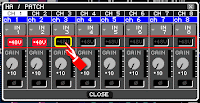
[ Using a User Defined Key ]
1. Open the USER DEFINED KEYS setup screen in the USER SETUP

2. Setup "SET BY SEL", "SET [+48V]" to one of the User Defined Keys
3. Hold down the User Defined Key and use SEL key of the input channel to turn on/off its phantom power

[ On the screen ]
1. In the Selected Channel screen, touch or press ENTER on HA gain control to open HA/PATCH popup

2. Touch or press ENTER on [+48V] button to turn on/off phantom power to the input channel

Use [SEL] key on the panel to select a different input channel
Thursday, August 14, 2008
DCA fader mode key doesn't work! - PM5D
I pressed the DCA key for the fader mode, but it stayed with the current fader bank and the DCA LED is blinking. How do I select DCA mode?
Please make sure that the "DCA ASSIGN" mode switch is turned off.

Please make sure that the "DCA ASSIGN" mode switch is turned off.

Wednesday, August 13, 2008
Where are my audio tracks on USB memory? - LS9
I copied some audio files on my USB memory but they did not come up to the RECORDER screen.
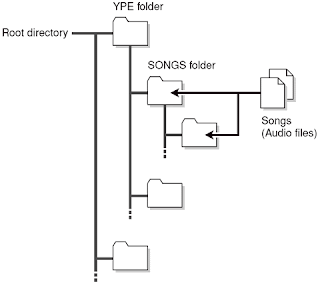
1. If you want to play back an audio file, you must save it in the SONGS folder within the YPE folder, or in a folder you’ve created below the SONGS folder. Files located in other folders and files of unsupported formats will not be recognized.
2. LS9 supports MP3 as well as WMA (Windows Media Audio) and AAC (MPEG-4 AAC) files for playback. The playable sampling rates are 44.1 kHz and 48 kHz. However, DRM (Digital Rights Management) is not supported.
1. If you want to play back an audio file, you must save it in the SONGS folder within the YPE folder, or in a folder you’ve created below the SONGS folder. Files located in other folders and files of unsupported formats will not be recognized.

2. LS9 supports MP3 as well as WMA (Windows Media Audio) and AAC (MPEG-4 AAC) files for playback. The playable sampling rates are 44.1 kHz and 48 kHz. However, DRM (Digital Rights Management) is not supported.
Tuesday, August 12, 2008
ExpressCard slot? PCMCIA slot?
Where is a PCMCIA slot on my computer?
PCMCIA slot is now being replaced by ExpressCard slot and your computer might not have it.
If your computer does not have a PCMCIA slot and you are using a CF and a PCMCIA adapter for your PM1D/PM5D, please find USB CF Reader/Writer for your CF memory card.
PCMCIA slot is now being replaced by ExpressCard slot and your computer might not have it.
If your computer does not have a PCMCIA slot and you are using a CF and a PCMCIA adapter for your PM1D/PM5D, please find USB CF Reader/Writer for your CF memory card.
Subscribe to:
Posts (Atom)