When people are navigating the system they are always looking for the one button that will change multiple things at the same time. In a lot of cases that button will be your User Define Keys.
In this case will be the "Layer snapshot" option.
This will memorize the layer settings for the input channel faders, MIX encoders,
ENCODER MODE, DCA faders and METERS. First assign LAYER SNAPSHOT to
a USER DEFINED key, then configure all the layers in the desired way, and hold the
USER DEFINED key for 2 seconds until it lights up. Now every time that button is
pressed, it returns the layers to the chosen configuration.
If you want to be able to open your GEQ at the same time just have a group of freq from that GEQ assigned to your DCA faders at the moment you create the layer snapshot.
Showing posts with label PM5D tips. Show all posts
Showing posts with label PM5D tips. Show all posts
Thursday, October 23, 2008

Thursday, August 28, 2008
+48V doesn't work?
"+48V" of the input channel is turned on but its phantom power is not provided to my condenser microphone.
Please make sure Phantom Master switch is turned on.
(PM1D)
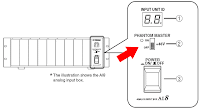 Front panel of AI8
(PM5D-RH)
 Rear panel of PM5D-RH
* PM5D doesn't have master switch
(DSP5D)
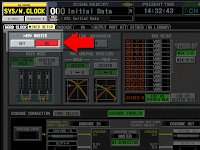 Mixer Setup screen
(M7CL)
 Setup screen
(LS9)
 System Setup screen
Please make sure Phantom Master switch is turned on.
(PM1D)
 Front panel of AI8
 Rear panel of PM5D-RH
* PM5D doesn't have master switch
(DSP5D)
 Mixer Setup screen
(M7CL)
 Setup screen
(LS9)
 System Setup screen
Thursday, August 21, 2008
Why is my console locked to 96kHz?
My PM5D is receiving digital audio via MY-slot and locking its word clock to the slot. The incoming digital audio is 48k but the console is locked to 96k. How do I change it to 48k?
Please go to Word Clock screen and select the MY-slot as a clock source. Then, change its Input/Output Format of the slot from "DOUBLE CHANNEL" to "DOUBLE SPEED". In a few seconds, the console will be locked to 48k.
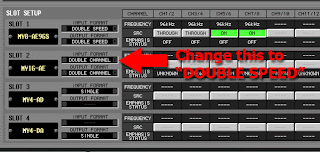
Please go to Word Clock screen and select the MY-slot as a clock source. Then, change its Input/Output Format of the slot from "DOUBLE CHANNEL" to "DOUBLE SPEED". In a few seconds, the console will be locked to 48k.

All 96k capable products, such as DM/0 series, DME series, and PM5D, may have this issue.
Tuesday, August 19, 2008
Try REV-X reverb
New REV-X algorithms are pre-installed to your PM1DV2, PM5D, PM5DV2, M7CL, LS9, and DM/0 VCM series. Yamaha add-on program is also available to some of other consoles to install Rev-X.
Try different characteristics of those reverb programs.
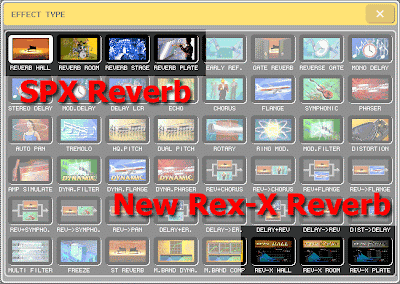
The following is from our "Add-on Effect" brochure:
"These reverb Add-on Effects employ the latest “REV-X” algorithms first introduced in Yamaha’s SPX2000 Professional Multi Effect Processor. The REV-X programs feature the richest reverberation and smoothest decay available, based on years of dedicated research and development.
REV-X Hall, REV-X Room, and REV-X Plate programs are provided, with new parameters such as room size and decay envelopes that offer unprecedented definition and finer nuance control. The REV-X Hall and REV-X Room programs have a very open sound, while REV-X Plate delivers a brighter tonality that is ideal for vocals. All models deliver dense, warm reverb that does not interfere with the natural timbre of the source."
Try different characteristics of those reverb programs.
The following is from our "Add-on Effect" brochure:
"These reverb Add-on Effects employ the latest “REV-X” algorithms first introduced in Yamaha’s SPX2000 Professional Multi Effect Processor. The REV-X programs feature the richest reverberation and smoothest decay available, based on years of dedicated research and development.
REV-X Hall, REV-X Room, and REV-X Plate programs are provided, with new parameters such as room size and decay envelopes that offer unprecedented definition and finer nuance control. The REV-X Hall and REV-X Room programs have a very open sound, while REV-X Plate delivers a brighter tonality that is ideal for vocals. All models deliver dense, warm reverb that does not interfere with the natural timbre of the source."
Monday, August 18, 2008
Try REV-X reverb
New REV-X algorithms are available on your PM1DV2, PM5D, M7CL, LS9, DM/0 VCM series and some consoles with Yamaha add-on program installed.
Try different characteristics of those reverb programs.
The following is from our "Add-on Effect" brochure:
"These reverb Add-on Effects employ the latest “REV-X” algorithms first introduced in Yamaha’s SPX2000 Professional Multi Effect Processor. The REV-X programs feature the richest reverberation and smoothest decay available, based on years of dedicated research and development.
REV-X Hall, REV-X Room, and REV-X Plate programs are provided, with new parameters such as room size and decay envelopes that offer unprecedented definition and finer nuance control. The REV-X Hall and REV-X Room programs have a very open sound, while REV-X Plate delivers a brighter tonality that is ideal for vocals. All models deliver dense, warm reverb that does not interfere with the natural timbre of the source."
Try different characteristics of those reverb programs.
The following is from our "Add-on Effect" brochure:
"These reverb Add-on Effects employ the latest “REV-X” algorithms first introduced in Yamaha’s SPX2000 Professional Multi Effect Processor. The REV-X programs feature the richest reverberation and smoothest decay available, based on years of dedicated research and development.
REV-X Hall, REV-X Room, and REV-X Plate programs are provided, with new parameters such as room size and decay envelopes that offer unprecedented definition and finer nuance control. The REV-X Hall and REV-X Room programs have a very open sound, while REV-X Plate delivers a brighter tonality that is ideal for vocals. All models deliver dense, warm reverb that does not interfere with the natural timbre of the source."
Thursday, August 14, 2008
DCA fader mode key doesn't work! - PM5D
I pressed the DCA key for the fader mode, but it stayed with the current fader bank and the DCA LED is blinking. How do I select DCA mode?
Please make sure that the "DCA ASSIGN" mode switch is turned off.

Please make sure that the "DCA ASSIGN" mode switch is turned off.

Tuesday, August 12, 2008
ExpressCard slot? PCMCIA slot?
Where is a PCMCIA slot on my computer?
PCMCIA slot is now being replaced by ExpressCard slot and your computer might not have it.
If your computer does not have a PCMCIA slot and you are using a CF and a PCMCIA adapter for your PM1D/PM5D, please find USB CF Reader/Writer for your CF memory card.
PCMCIA slot is now being replaced by ExpressCard slot and your computer might not have it.
If your computer does not have a PCMCIA slot and you are using a CF and a PCMCIA adapter for your PM1D/PM5D, please find USB CF Reader/Writer for your CF memory card.
Difficult to find PCMCIA memory card?
I could not find a PCMCIA memory card. Where can I buy it?
You might find some PCMCIA ATA FLASH cards online. But they are usually relatively expensive.
Please use a CF (Compact Flash, up to 2GB) memory card with a PCMCIA adapter.
"Type I CF" to "Type II PCMCIA" adapter is the one you will need.
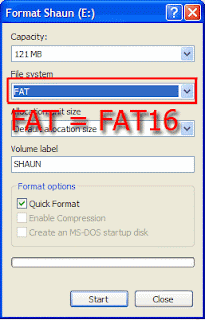 Please format the CF memory card in FAT16 with your PC. PM1D or PM5D does not support FAT32.
You might find some PCMCIA ATA FLASH cards online. But they are usually relatively expensive.
Please use a CF (Compact Flash, up to 2GB) memory card with a PCMCIA adapter.
"Type I CF" to "Type II PCMCIA" adapter is the one you will need.
 Please format the CF memory card in FAT16 with your PC. PM1D or PM5D does not support FAT32.
Wednesday, August 6, 2008
SIGNAL FLOW screen - PM5D
What is the first screen to do troubleshooting on my PM5D?
Open SIGNAL FLOW screen by pressing the VIEW key in OUTPUT or INPUT section.

Select a channel to check its status.

Open SIGNAL FLOW screen by pressing the VIEW key in OUTPUT or INPUT section.

Select a channel to check its status.

Wednesday, July 30, 2008
Loading User Defined Key setup
Can I load only my PM5D User Defined Key setup from my memory card?
Save "User Defined Key" file on to your memory card first.
Open SAVE screen. Select USER DEFINED KEY as a type of file to save, then click SAVE.

Now you can load your User Defined Key setup to your console without overwriting any other information.
Open LOAD screen and select the file you saved, then load it to the console. If you would like to load only one bank instead of loading all four banks, select ADVANCED mode and select a source bank and a destination bank to load.
Save "User Defined Key" file on to your memory card first.
Open SAVE screen. Select USER DEFINED KEY as a type of file to save, then click SAVE.

Now you can load your User Defined Key setup to your console without overwriting any other information.
Open LOAD screen and select the file you saved, then load it to the console. If you would like to load only one bank instead of loading all four banks, select ADVANCED mode and select a source bank and a destination bank to load.
Tuesday, July 29, 2008
Multi-band Compressor
Where is a multi-band compressor on my console?
 PM1D (V1.6 or later), PM5D, M7CL, LS9, and DM/0 series has a program of multi-band dynamics in EFFECT unit (M.Band Dyna.).

PM5D, M7CL, and LS9 has multi-band compressor program also. This is little simplified version and easier to use. (M.Band Comp)

They are both have stereo input and stereo output.
 PM1D (V1.6 or later), PM5D, M7CL, LS9, and DM/0 series has a program of multi-band dynamics in EFFECT unit (M.Band Dyna.).
PM5D, M7CL, and LS9 has multi-band compressor program also. This is little simplified version and easier to use. (M.Band Comp)

They are both have stereo input and stereo output.
Tuesday, July 15, 2008
192 channel input on PM5D system?
What is the largest number of input channels the PM5D system may have?
192 channels = four PM5D(-RH) uni-directionally cascaded

144 channels = one PM5D(-RH) and two DSP5D bi-directionally cascaded

192 channels = four PM5D(-RH) uni-directionally cascaded
- Only the last console (Console D in the illustration below from Owner's Manual p.226) has audio mixed from every unit.
- Some of functions, such as Scene Recall/Store, DCA, and Mute group, can be linked but no total remote control from one console to the others. Which means you need to go to the console to change the parameter.
- Needs enough space to put them all....

144 channels = one PM5D(-RH) and two DSP5D bi-directionally cascaded
- Every unit may have audio mixed from every unit (bi-directional audio flow between the three)
- Just one control surface to control all of those 144 input channels
- Most of the functions are linked to offer an easier operation experience with an integrated 144 channel system instead of with three 48 channel systems.
- Smaller footprint. Furthermore, the DSP5Ds could be setup on stage.

Tuesday, July 8, 2008
MIDI Thru = OFF
When you open the Yamaha MIDI-USB Driver from the Control Panel, you see options like the following screen shot.

There's a option called "Thru ON/OFF" with a checkbox. Please keep it UNCHECKED for your consoles and other Yamaha Commercial Audio products. It slows down the communication between the products and the computer and can cause a problem.

There's a option called "Thru ON/OFF" with a checkbox. Please keep it UNCHECKED for your consoles and other Yamaha Commercial Audio products. It slows down the communication between the products and the computer and can cause a problem.
Wednesday, July 2, 2008
Former version of Editor programs
When you get a rental console with old version of firmware, what will you do?
Will you update the console? Maybe not... Then, you will start looking for the correct version of Editor software to synchronize with the old firmware.
Ok, now you can download old version of the Editor software from YamahaProAudio.com.
In the Editor download page, there is a matching matrix for the firmware and the Editor.
Please refer to the link below.
1. Check the firmware version of the console
2. Check the Editor version which you have on your PC/Mac
3. Check the matching between them with the version history page: PM5D, DSP5D, M7CL, and LS9
4. If you need an old Editor program, download it from the links right.
Will you update the console? Maybe not... Then, you will start looking for the correct version of Editor software to synchronize with the old firmware.
Ok, now you can download old version of the Editor software from YamahaProAudio.com.
In the Editor download page, there is a matching matrix for the firmware and the Editor.
Please refer to the link below.
1. Check the firmware version of the console
2. Check the Editor version which you have on your PC/Mac
3. Check the matching between them with the version history page: PM5D, DSP5D, M7CL, and LS9
4. If you need an old Editor program, download it from the links right.
Copying the matching matrix to your local disk would be a good idea.
For PM1D, it is a little simpler. Just use the same version of the PM1D Manager with the firmware and the former version of programs are available in the PM1D/PM1D V2 version history page.
Wednesday, June 25, 2008
Pan the input to the stereo Mixes
How do I pan the input signal to send to the stereo Mixes?
(PM1D, PM5D, M7CL, and LS9) At the Selected Channel area, Mix Send controls for the stereo Mixes are "Pan" (odd) and "Level" (even).

(PM5D V2) When "FLIP" mode is engaged to the input faders and "PAN" key at the encoder mode is pressed, the Channel Encoders are pan controls for the stereo Mixes from the input channels.
The function assigned to the controls in the mode: (Owner's Manual p.49)
Encoder -- Pan of the signal sent from channels (of the currently selected layer) to paired MIX buses (invalid if MIX channels are not paired)
ENCODER [ON] key -- Channel (currently selected layer) on/off
Fader -- Send level from channel (currently selected layer) to MIX bus
CH [ON] key -- On/off status of signal sent from channel (currently selected layer) to MIX bus

(DM/0): It will be set only with the screen.
(PM1D, PM5D, M7CL, and LS9) At the Selected Channel area, Mix Send controls for the stereo Mixes are "Pan" (odd) and "Level" (even).

(PM5D V2) When "FLIP" mode is engaged to the input faders and "PAN" key at the encoder mode is pressed, the Channel Encoders are pan controls for the stereo Mixes from the input channels.
The function assigned to the controls in the mode: (Owner's Manual p.49)
Encoder -- Pan of the signal sent from channels (of the currently selected layer) to paired MIX buses (invalid if MIX channels are not paired)
ENCODER [ON] key -- Channel (currently selected layer) on/off
Fader -- Send level from channel (currently selected layer) to MIX bus
CH [ON] key -- On/off status of signal sent from channel (currently selected layer) to MIX bus

(DM/0): It will be set only with the screen.
Tuesday, June 24, 2008
Flattening PEQ
Is there a short-cut for flattening PEQ?
With the following short-cuts, gain parameter will be set to 0dB and its frequency and Q value will stay as is.
(PM1D) Please use a [FLAT] button in the EQ screen. (no hardware short-cut)
(PM5D) Press and hold down UPPER and LOWER keys.

(M7CL) Press both GAIN and Q knobs of a band that you'd like to flatten.

(LS9) Press both HIGH and LOW keys.

(DM2000 and 02r96) Press and hold down FREQUENCY/Q knob of a band that you'd like to flatten.
(DM1000 and 01v96) Press and hold down band key that you'd like to flatten.
With the following short-cuts, gain parameter will be set to 0dB and its frequency and Q value will stay as is.
(PM1D) Please use a [FLAT] button in the EQ screen. (no hardware short-cut)
(PM5D) Press and hold down UPPER and LOWER keys.


(DM1000 and 01v96) Press and hold down band key that you'd like to flatten.
Tuesday, May 27, 2008
Let your cursor free
If you are a big fan of navigating the PM5D or PM1D with the cursor keys, these tips may help you.
 PM5D Owner's Manual p28:
"To move quickly to the outer edge of the current window or to a different window, hold down the [SHIFT] key and use the CURSOR keys. You will move from the scroll window in which the cursor is currently located, in the direction of the key you pressed."
In the Patch screen, the [DATA] encoder moves the cursor horizontally.
When you hold the [SHIFT] key and turn the encoder, the cursor is moved vertically.
 PM5D Owner's Manual p28:
"To move quickly to the outer edge of the current window or to a different window, hold down the [SHIFT] key and use the CURSOR keys. You will move from the scroll window in which the cursor is currently located, in the direction of the key you pressed."
In the Patch screen, the [DATA] encoder moves the cursor horizontally.
When you hold the [SHIFT] key and turn the encoder, the cursor is moved vertically.
Please put the mouse cursor outside of the patch matrix. If it is in the area, your red box cursor will be moved to a box with the mouse cursor after closing a confirmation pop-up.
Tuesday, May 20, 2008
Compatibility between the firmware and the PM5D Editor program (PM5D)
I got a PM5D with an old version of the firmware. Which version of PM5D Editor should I use?
(From the PM5DV2 Editor download page)
"Use the editor with the supported firmware that you can find following table. Using under unsupported combination may cause data corruption that can result unexpected behavior. If a failure occurred, turn it on pressing [STORE] key on the panel, and then select INITIALIZE ALL MEMORIES to restart it normally."
"The files saved on the later version editors or consoles can not be loaded to those of earlier versions."
We always recommend that your console has the latest firmware which can load any version of a data file to it.
(From the PM5DV2 Editor download page)
"Use the editor with the supported firmware that you can find following table. Using under unsupported combination may cause data corruption that can result unexpected behavior. If a failure occurred, turn it on pressing [STORE] key on the panel, and then select INITIALIZE ALL MEMORIES to restart it normally."
"The files saved on the later version editors or consoles can not be loaded to those of earlier versions."
We always recommend that your console has the latest firmware which can load any version of a data file to it.
Wednesday, May 14, 2008
YSM (DAF) file cannot be opened

 In some cases, after several Windows Update, YSM file for the Studio Manger V2 or DAF file for the DME Designer cannot be opened by double clicking it. And it shows a pop-up like the right.
It is not a problem because of a file failure or a compatibility issue between the program and the data. File type registration of the OS was not managed correctly.
 By the way, YSE file for the Editor software cannot be opened by double click. It needs information of Studio Manager (its host software) to start up and to be opened from the "Open..." menu of the Editor software.
Here is the procedure to solve the problem. This is about the Studio Manager but the procedure is same for the DME Designer.
 1) Select "Folder options" in the Tools menu of the explorer, and "Folder options" dialog box will open.
 2) Click the "FileTypes" tab.
3) Select the "YSM" from the Registered file types list. ( It is easy to access YSM by pressing "Y" key on any list. )
4) Click the Advanced button, and the "Edit File Type" dialog box will open.
 5) Slect the "open" in the Actions area, and click the Edit button, and the "Editing action for type" dialog box will open.
 6) The "Application used to perform action" area should be as follows:
C:\Program Files\YAMAHA\Studio Manager\SM2.exe %1
Enclose the above strings within double quotes as follows:
 "C:\Program Files\YAMAHA\Studio Manager\SM2.exe" "%1"
If the Action area is blank, input "open".
7) Close all dialog box.
Subscribe to:
Posts (Atom)