"EEEngine combines the sound quality of Class AB circuitry while maintaining the efficiency of Class D circuitry. Combining positive aspects of both Class AB and Class D may seem simple by concept, but it took years of extensive engineering efforts to achieve this technology on a mass production base."
Please see the linked white paper about Yamaha amplifiers.
Showing posts with label Other products. Show all posts
Showing posts with label Other products. Show all posts
Monday, January 19, 2009

Tuesday, September 9, 2008
Yes it is finally here, the SB168-ES our Digital Snake

We now have a great option for people looking for a digital snake solution, our SB168 ES. The product has 16 inputs and 8 output in a 3 rack space box. The system is based on the EtherSound Technology, high-quality bidirectional multi-channel transmission capabilities, and its use of easily obtainable CAT5e cable. From there you just need to have the MY16-ES64 and MY16- EX mini-YGDAI cards to connect to a Yamaha digital console.
Well enough for now, how about if you look for us at AES?
We will be there presenting our new family member.
Hope to see you there.


Friday, August 22, 2008
Assign a static IP address to your PC
Which is better to assign an IP address to my PC, automatic (DHCP) or static?
We recommend to assign a static IP address to your PC.
Automatic assignment from your network's DHCP server is very convenient, but usually the server update the assigned IP address every few hours and it would reset Studio Manager or DME Designer connection.
We recommend to assign a static IP address to your PC.
Automatic assignment from your network's DHCP server is very convenient, but usually the server update the assigned IP address every few hours and it would reset Studio Manager or DME Designer connection.
Windows XP
1 Select [Start] → [Control Panel].
The “Control Panel” is displayed.
2 If the “Control Panel” is in Category display, click [Switch to Classic View].
3 Double-click [Network Connections] → [Local Area Connection].
The “Local Area Connection Status” dialog box will be displayed.
4 Click [Properties] on the [General] tab.
The “Local Area Connection Properties” dialog box will be displayed.
5 Select [Internet Protocol (TCP/IP)] on the [General] tab, then click [Properties].
The “Internet Protocol (TCP/IP) Properties” dialog box will be displayed.
6 Click [Use the following IP address] on the [General] tab.
7 Enter your computer’s IP address into [IP address]***Do not use the same number as the console***, (i.e., 192.168.0.130), the Gateway’s IP address into [Default gateway], and “255.255.255.0” into [Subnet mask].
* When installing on the same subnet as the DME unit(s), set the gateway’s host address to 254.
8 Click [OK].
9 Restart your computer.
Thursday, August 21, 2008
Why is my console locked to 96kHz?
My PM5D is receiving digital audio via MY-slot and locking its word clock to the slot. The incoming digital audio is 48k but the console is locked to 96k. How do I change it to 48k?
Please go to Word Clock screen and select the MY-slot as a clock source. Then, change its Input/Output Format of the slot from "DOUBLE CHANNEL" to "DOUBLE SPEED". In a few seconds, the console will be locked to 48k.
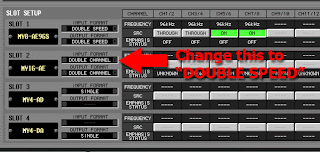
Please go to Word Clock screen and select the MY-slot as a clock source. Then, change its Input/Output Format of the slot from "DOUBLE CHANNEL" to "DOUBLE SPEED". In a few seconds, the console will be locked to 48k.

All 96k capable products, such as DM/0 series, DME series, and PM5D, may have this issue.
Friday, August 15, 2008
Mocha VNC for iPhone and iPod
I've just found an application for iPhone.
Some of you would be interested.
Some of you would be interested.
Don't ask me how to setup.... I don't have an iPhone....
Tuesday, July 29, 2008
Multi-band Compressor
Where is a multi-band compressor on my console?
 PM1D (V1.6 or later), PM5D, M7CL, LS9, and DM/0 series has a program of multi-band dynamics in EFFECT unit (M.Band Dyna.).

PM5D, M7CL, and LS9 has multi-band compressor program also. This is little simplified version and easier to use. (M.Band Comp)

They are both have stereo input and stereo output.
 PM1D (V1.6 or later), PM5D, M7CL, LS9, and DM/0 series has a program of multi-band dynamics in EFFECT unit (M.Band Dyna.).
PM5D, M7CL, and LS9 has multi-band compressor program also. This is little simplified version and easier to use. (M.Band Comp)

They are both have stereo input and stereo output.
Tuesday, July 8, 2008
MIDI Thru = OFF
When you open the Yamaha MIDI-USB Driver from the Control Panel, you see options like the following screen shot.

There's a option called "Thru ON/OFF" with a checkbox. Please keep it UNCHECKED for your consoles and other Yamaha Commercial Audio products. It slows down the communication between the products and the computer and can cause a problem.

There's a option called "Thru ON/OFF" with a checkbox. Please keep it UNCHECKED for your consoles and other Yamaha Commercial Audio products. It slows down the communication between the products and the computer and can cause a problem.
Friday, June 13, 2008
PC software for AD8HR remote
ES-Monitor and DME Designer can control AD8HR/AD824 HA Gain from your PC. But it need EtherSound device or DME to do it.
Audio Service has a program for it. "Remotesoftware for Yamaha AD8HR/AD824"
This could be another option for this.
Audio Service has a program for it. "Remotesoftware for Yamaha AD8HR/AD824"
This could be another option for this.
Friday, May 30, 2008
Patch ES network audio virtually
How can I patch audio in ES network without devices?
When you run ES-Monitor without your devices connected, you don't see anything in the program window and cannot add a device to it from the program.
But ES-Editor can do it.
1. Install ES-Monitor software downloaded from AuviTran web site.
 2. Run ES-Editor software came with ES-Monitor and add devices which are going to be used in the project to the network in the order of the physical connection. (Upstream --> downstream)
3. Save it to a cfg file.
4. Run ES-Monitor and select Offline Mode. ([Command] -> [Switch Offline Mode], or Ctrl+O)
 5. Load the cfg file to the ES-Monitor software.
6. Patch audio routing and check its validity.
Then, when you have the system connected, the cfg file can be loaded to ES-Monitor program and downloaded to the devices to achieve the setting.
Don't forget to save the information to non-volatile memory on the devices.
When you run ES-Monitor without your devices connected, you don't see anything in the program window and cannot add a device to it from the program.
But ES-Editor can do it.
1. Install ES-Monitor software downloaded from AuviTran web site.
 2. Run ES-Editor software came with ES-Monitor and add devices which are going to be used in the project to the network in the order of the physical connection. (Upstream --> downstream)
3. Save it to a cfg file.
4. Run ES-Monitor and select Offline Mode. ([Command] -> [Switch Offline Mode], or Ctrl+O)
 5. Load the cfg file to the ES-Monitor software.
6. Patch audio routing and check its validity.
Then, when you have the system connected, the cfg file can be loaded to ES-Monitor program and downloaded to the devices to achieve the setting.
Don't forget to save the information to non-volatile memory on the devices.
Port number for DME-N Network Driver
I need to use my firewall software. Which port needs to be opened for DME-N Network Driver?
The TCP/IP port that DME-N Network Driver uses for communicating on the Ethernet network is 12300.
So if it's in the case that you cannot stop the whole firewall software so that you need to specify the port number used for DME network communication, punch a hole in the firewall port number 12300 to let the DME/M7CL/LS9 traffic through.
The TCP/IP port that DME-N Network Driver uses for communicating on the Ethernet network is 12300.
So if it's in the case that you cannot stop the whole firewall software so that you need to specify the port number used for DME network communication, punch a hole in the firewall port number 12300 to let the DME/M7CL/LS9 traffic through.
Monday, April 28, 2008
AD8HR remote without a Yamaha console
Can AD8HR be remotely controlled by a Windows PC without a Yamaha console?
Yes.
 When a NAI48-ES interfaces between AD8HR's AES/EBU output and EtherSound (ES) digital audio network, the NAI48-ES translates a remote control command from ES-Monitor software running on the Windows PC via the ES network, which will be output from RS-422 port on the NAI48-ES to the AD8HRs.
 Open the Control tab of the NAI48-ES and check the "AD8HR PC Remote Control" option. Now a new tab named AD8HR is available. Click the tab and control AD8HRs.
The other way may be using a DME unit. The DME interfaces between DME Designer running on a Windows PC and AD8HRs which are connected to the DME with RS-422 serial cable.
(DME Designer V3 Owner's manual, p.213)
"You can connect Yamaha AD824 and AD8HR A/D converters to a DME unit and control them remotely from DME Designer. DME Designer has a component editor for controlling [AD824] and [AD8HR] units.
If you arrange an [AD824] or [AD8HR] from [External Device] in the Zone window, select the connected DME unit in the properties dialog box, and double-click on an [AD824] or [AD8HR] block, the component editor is displayed."
Yes.
 When a NAI48-ES interfaces between AD8HR's AES/EBU output and EtherSound (ES) digital audio network, the NAI48-ES translates a remote control command from ES-Monitor software running on the Windows PC via the ES network, which will be output from RS-422 port on the NAI48-ES to the AD8HRs.
 Open the Control tab of the NAI48-ES and check the "AD8HR PC Remote Control" option. Now a new tab named AD8HR is available. Click the tab and control AD8HRs.
The other way may be using a DME unit. The DME interfaces between DME Designer running on a Windows PC and AD8HRs which are connected to the DME with RS-422 serial cable.
(DME Designer V3 Owner's manual, p.213)

"You can connect Yamaha AD824 and AD8HR A/D converters to a DME unit and control them remotely from DME Designer. DME Designer has a component editor for controlling [AD824] and [AD8HR] units.
If you arrange an [AD824] or [AD8HR] from [External Device] in the Zone window, select the connected DME unit in the properties dialog box, and double-click on an [AD824] or [AD8HR] block, the component editor is displayed."
Subscribe to:
Posts (Atom)