The answer is no. When you choose to have an external power supply connected to your M7CL (PW800) what you are getting is a secondary power source, a back up power supply.
The PW800 will not give you any more DSP power, that means that you will not be able to get more GEQs or Effects on your M7CL.
Showing posts with label M7CL tips. Show all posts
Showing posts with label M7CL tips. Show all posts
Monday, December 1, 2008

Thursday, August 28, 2008
+48V doesn't work?
"+48V" of the input channel is turned on but its phantom power is not provided to my condenser microphone.
Please make sure Phantom Master switch is turned on.
(PM1D)
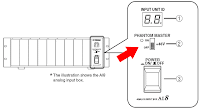 Front panel of AI8
(PM5D-RH)
 Rear panel of PM5D-RH
* PM5D doesn't have master switch
(DSP5D)
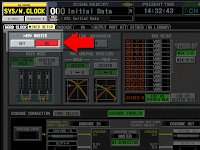 Mixer Setup screen
(M7CL)
 Setup screen
(LS9)
 System Setup screen
Please make sure Phantom Master switch is turned on.
(PM1D)
 Front panel of AI8
 Rear panel of PM5D-RH
* PM5D doesn't have master switch
(DSP5D)
 Mixer Setup screen
(M7CL)
 Setup screen
(LS9)
 System Setup screen
Friday, August 22, 2008
Assign a static IP address to your PC
Which is better to assign an IP address to my PC, automatic (DHCP) or static?
We recommend to assign a static IP address to your PC.
Automatic assignment from your network's DHCP server is very convenient, but usually the server update the assigned IP address every few hours and it would reset Studio Manager or DME Designer connection.
We recommend to assign a static IP address to your PC.
Automatic assignment from your network's DHCP server is very convenient, but usually the server update the assigned IP address every few hours and it would reset Studio Manager or DME Designer connection.
Windows XP
1 Select [Start] → [Control Panel].
The “Control Panel” is displayed.
2 If the “Control Panel” is in Category display, click [Switch to Classic View].
3 Double-click [Network Connections] → [Local Area Connection].
The “Local Area Connection Status” dialog box will be displayed.
4 Click [Properties] on the [General] tab.
The “Local Area Connection Properties” dialog box will be displayed.
5 Select [Internet Protocol (TCP/IP)] on the [General] tab, then click [Properties].
The “Internet Protocol (TCP/IP) Properties” dialog box will be displayed.
6 Click [Use the following IP address] on the [General] tab.
7 Enter your computer’s IP address into [IP address]***Do not use the same number as the console***, (i.e., 192.168.0.130), the Gateway’s IP address into [Default gateway], and “255.255.255.0” into [Subnet mask].
* When installing on the same subnet as the DME unit(s), set the gateway’s host address to 254.
8 Click [OK].
9 Restart your computer.
Tuesday, August 19, 2008
ALL PRE/POST - M7CL, LS9
How do I change the MIX1 to POST all input channels at once ?
Open the MIX SEND popup by pressing the TO MIX1 SEND LEVEL knob in the selected channel or overview screen. In the popup screen, you have "ALL PRE" and "ALL POST" button on the upper right corner.

Open the MIX SEND popup by pressing the TO MIX1 SEND LEVEL knob in the selected channel or overview screen. In the popup screen, you have "ALL PRE" and "ALL POST" button on the upper right corner.

Try REV-X reverb
New REV-X algorithms are pre-installed to your PM1DV2, PM5D, PM5DV2, M7CL, LS9, and DM/0 VCM series. Yamaha add-on program is also available to some of other consoles to install Rev-X.
Try different characteristics of those reverb programs.
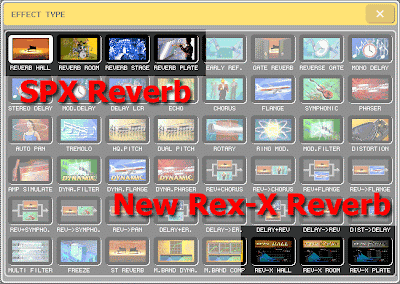
The following is from our "Add-on Effect" brochure:
"These reverb Add-on Effects employ the latest “REV-X” algorithms first introduced in Yamaha’s SPX2000 Professional Multi Effect Processor. The REV-X programs feature the richest reverberation and smoothest decay available, based on years of dedicated research and development.
REV-X Hall, REV-X Room, and REV-X Plate programs are provided, with new parameters such as room size and decay envelopes that offer unprecedented definition and finer nuance control. The REV-X Hall and REV-X Room programs have a very open sound, while REV-X Plate delivers a brighter tonality that is ideal for vocals. All models deliver dense, warm reverb that does not interfere with the natural timbre of the source."
Try different characteristics of those reverb programs.
The following is from our "Add-on Effect" brochure:
"These reverb Add-on Effects employ the latest “REV-X” algorithms first introduced in Yamaha’s SPX2000 Professional Multi Effect Processor. The REV-X programs feature the richest reverberation and smoothest decay available, based on years of dedicated research and development.
REV-X Hall, REV-X Room, and REV-X Plate programs are provided, with new parameters such as room size and decay envelopes that offer unprecedented definition and finer nuance control. The REV-X Hall and REV-X Room programs have a very open sound, while REV-X Plate delivers a brighter tonality that is ideal for vocals. All models deliver dense, warm reverb that does not interfere with the natural timbre of the source."
Monday, August 18, 2008
Try REV-X reverb
New REV-X algorithms are available on your PM1DV2, PM5D, M7CL, LS9, DM/0 VCM series and some consoles with Yamaha add-on program installed.
Try different characteristics of those reverb programs.
The following is from our "Add-on Effect" brochure:
"These reverb Add-on Effects employ the latest “REV-X” algorithms first introduced in Yamaha’s SPX2000 Professional Multi Effect Processor. The REV-X programs feature the richest reverberation and smoothest decay available, based on years of dedicated research and development.
REV-X Hall, REV-X Room, and REV-X Plate programs are provided, with new parameters such as room size and decay envelopes that offer unprecedented definition and finer nuance control. The REV-X Hall and REV-X Room programs have a very open sound, while REV-X Plate delivers a brighter tonality that is ideal for vocals. All models deliver dense, warm reverb that does not interfere with the natural timbre of the source."
Try different characteristics of those reverb programs.
The following is from our "Add-on Effect" brochure:
"These reverb Add-on Effects employ the latest “REV-X” algorithms first introduced in Yamaha’s SPX2000 Professional Multi Effect Processor. The REV-X programs feature the richest reverberation and smoothest decay available, based on years of dedicated research and development.
REV-X Hall, REV-X Room, and REV-X Plate programs are provided, with new parameters such as room size and decay envelopes that offer unprecedented definition and finer nuance control. The REV-X Hall and REV-X Room programs have a very open sound, while REV-X Plate delivers a brighter tonality that is ideal for vocals. All models deliver dense, warm reverb that does not interfere with the natural timbre of the source."
Friday, August 15, 2008
Phantom Power (+48V) switch? - M7CL/LS9
Where is a Phantom Power (+48V) switch for my input?
[ Using a User Defined Key ]
1. Open the USER DEFINED KEYS setup screen in the USER SETUP
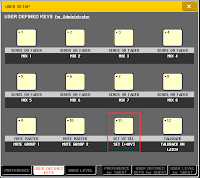
2. Setup "SET BY SEL", "SET [+48V]" to one of the User Defined Keys
3. Hold down the User Defined Key and use SEL key of the input channel to turn on/off its phantom power
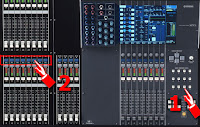
[ On the screen ]
1. In the Selected Channel screen, touch or press ENTER on HA gain control to open HA/PATCH popup
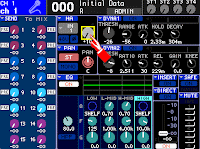
2. Touch or press ENTER on [+48V] button to turn on/off phantom power to the input channel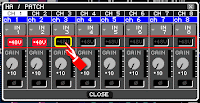
[ Using a User Defined Key ]
1. Open the USER DEFINED KEYS setup screen in the USER SETUP

2. Setup "SET BY SEL", "SET [+48V]" to one of the User Defined Keys
3. Hold down the User Defined Key and use SEL key of the input channel to turn on/off its phantom power

[ On the screen ]
1. In the Selected Channel screen, touch or press ENTER on HA gain control to open HA/PATCH popup

2. Touch or press ENTER on [+48V] button to turn on/off phantom power to the input channel

Use [SEL] key on the panel to select a different input channel
Wednesday, August 6, 2008
M7CL V1.15 and M7CL Editor V2.1.2 released
One more post today.
The updates for M7CL have been released. New firmware V1.15 and Editor software V2.1.2 was uploaded to Yamahaproaudio.com.
The firmware got a small improvement. The Editor got some bug fixes and improvement on its stability. Please check its release note on the download page.
The firmware V1.15 is still compatible with the previous version of Editor (V2.1.1). But we recommend you to upgrade both of them at one time for maximizing your system's performance and your better experience. To have more information about compatibility between different version of firmware and Editor software, please refer to the download page.
(I'm now listening to:
"Knights Of Cydonia" from "Black Holes and revelations" by Muse)
The updates for M7CL have been released. New firmware V1.15 and Editor software V2.1.2 was uploaded to Yamahaproaudio.com.

The firmware got a small improvement. The Editor got some bug fixes and improvement on its stability. Please check its release note on the download page.
The firmware V1.15 is still compatible with the previous version of Editor (V2.1.1). But we recommend you to upgrade both of them at one time for maximizing your system's performance and your better experience. To have more information about compatibility between different version of firmware and Editor software, please refer to the download page.
(I'm now listening to:
"Knights Of Cydonia" from "Black Holes and revelations" by Muse)
Tuesday, July 29, 2008
Multi-band Compressor
Where is a multi-band compressor on my console?
 PM1D (V1.6 or later), PM5D, M7CL, LS9, and DM/0 series has a program of multi-band dynamics in EFFECT unit (M.Band Dyna.).

PM5D, M7CL, and LS9 has multi-band compressor program also. This is little simplified version and easier to use. (M.Band Comp)

They are both have stereo input and stereo output.
 PM1D (V1.6 or later), PM5D, M7CL, LS9, and DM/0 series has a program of multi-band dynamics in EFFECT unit (M.Band Dyna.).
PM5D, M7CL, and LS9 has multi-band compressor program also. This is little simplified version and easier to use. (M.Band Comp)

They are both have stereo input and stereo output.
Thursday, July 17, 2008
Short-cut to the DCA/MUTE Group assign popup - M7CL
Is there any short-cut to the DCA/MUTE Group assign mode popup?
If the [DCA] key is selected in the NAVIGATION KEYS section, you can access the DCA/MUTE GROUP ASSIGN MODE popup window by pressing the Centralogic section [SEL] key twice in rapid succession.

In this case, the DCA/MUTE GROUP ASSIGN MODE popup window will appear with the DCA GROUP 1–8 button selected for that DCA group. (Owner's Manual p.114)

If the [DCA] key is selected in the NAVIGATION KEYS section, you can access the DCA/MUTE GROUP ASSIGN MODE popup window by pressing the Centralogic section [SEL] key twice in rapid succession.

In this case, the DCA/MUTE GROUP ASSIGN MODE popup window will appear with the DCA GROUP 1–8 button selected for that DCA group. (Owner's Manual p.114)

Wednesday, July 2, 2008
Former version of Editor programs
When you get a rental console with old version of firmware, what will you do?
Will you update the console? Maybe not... Then, you will start looking for the correct version of Editor software to synchronize with the old firmware.
Ok, now you can download old version of the Editor software from YamahaProAudio.com.
In the Editor download page, there is a matching matrix for the firmware and the Editor.
Please refer to the link below.
1. Check the firmware version of the console
2. Check the Editor version which you have on your PC/Mac
3. Check the matching between them with the version history page: PM5D, DSP5D, M7CL, and LS9
4. If you need an old Editor program, download it from the links right.
Will you update the console? Maybe not... Then, you will start looking for the correct version of Editor software to synchronize with the old firmware.
Ok, now you can download old version of the Editor software from YamahaProAudio.com.
In the Editor download page, there is a matching matrix for the firmware and the Editor.
Please refer to the link below.
1. Check the firmware version of the console
2. Check the Editor version which you have on your PC/Mac
3. Check the matching between them with the version history page: PM5D, DSP5D, M7CL, and LS9
4. If you need an old Editor program, download it from the links right.
Copying the matching matrix to your local disk would be a good idea.
For PM1D, it is a little simpler. Just use the same version of the PM1D Manager with the firmware and the former version of programs are available in the PM1D/PM1D V2 version history page.
Cue Clear
"CUE CLEAR" function is assigned to User Defined Key 11 in default.
The function clears all CUE selections.
You can also use the CUE meter in the function access area to clear CUE.

The function clears all CUE selections.
You can also use the CUE meter in the function access area to clear CUE.

Tuesday, July 1, 2008
Green dot
What is the green dot next to the channel name?
It is a nominal indicator. When a fader is at nominal, the indicator is lit in green.

It is a nominal indicator. When a fader is at nominal, the indicator is lit in green.

Wednesday, June 25, 2008
Pan the input to the stereo Mixes
How do I pan the input signal to send to the stereo Mixes?
(PM1D, PM5D, M7CL, and LS9) At the Selected Channel area, Mix Send controls for the stereo Mixes are "Pan" (odd) and "Level" (even).

(PM5D V2) When "FLIP" mode is engaged to the input faders and "PAN" key at the encoder mode is pressed, the Channel Encoders are pan controls for the stereo Mixes from the input channels.
The function assigned to the controls in the mode: (Owner's Manual p.49)
Encoder -- Pan of the signal sent from channels (of the currently selected layer) to paired MIX buses (invalid if MIX channels are not paired)
ENCODER [ON] key -- Channel (currently selected layer) on/off
Fader -- Send level from channel (currently selected layer) to MIX bus
CH [ON] key -- On/off status of signal sent from channel (currently selected layer) to MIX bus

(DM/0): It will be set only with the screen.
(PM1D, PM5D, M7CL, and LS9) At the Selected Channel area, Mix Send controls for the stereo Mixes are "Pan" (odd) and "Level" (even).

(PM5D V2) When "FLIP" mode is engaged to the input faders and "PAN" key at the encoder mode is pressed, the Channel Encoders are pan controls for the stereo Mixes from the input channels.
The function assigned to the controls in the mode: (Owner's Manual p.49)
Encoder -- Pan of the signal sent from channels (of the currently selected layer) to paired MIX buses (invalid if MIX channels are not paired)
ENCODER [ON] key -- Channel (currently selected layer) on/off
Fader -- Send level from channel (currently selected layer) to MIX bus
CH [ON] key -- On/off status of signal sent from channel (currently selected layer) to MIX bus

(DM/0): It will be set only with the screen.
Tuesday, June 24, 2008
Flattening PEQ
Is there a short-cut for flattening PEQ?
With the following short-cuts, gain parameter will be set to 0dB and its frequency and Q value will stay as is.
(PM1D) Please use a [FLAT] button in the EQ screen. (no hardware short-cut)
(PM5D) Press and hold down UPPER and LOWER keys.

(M7CL) Press both GAIN and Q knobs of a band that you'd like to flatten.

(LS9) Press both HIGH and LOW keys.

(DM2000 and 02r96) Press and hold down FREQUENCY/Q knob of a band that you'd like to flatten.
(DM1000 and 01v96) Press and hold down band key that you'd like to flatten.
With the following short-cuts, gain parameter will be set to 0dB and its frequency and Q value will stay as is.
(PM1D) Please use a [FLAT] button in the EQ screen. (no hardware short-cut)
(PM5D) Press and hold down UPPER and LOWER keys.


(DM1000 and 01v96) Press and hold down band key that you'd like to flatten.
Monday, June 23, 2008
Monitor Mix on M7CL
How do I setup my M7CL as a monitor console? Where is monitor output and a monitor level master fader?
Please refer to M7CL Short-cut list.
The following is from the document.
1. TO PATCH MONITOR OUT
The default patch does not include an XLR output for cue/monitor signals. To patch the monitor bus to an omni out;
1. Press the Headphone Icon in the function access panel.
2. Open the MONITOR pop-up by pressing the grey tab to the left of the screen.
3. Press the grey square under the L meter to see the OUTPUT PORT SELECT for Monitor L pop-up and chose your output (OMNI 1 for example).
4. If you want to monitor in mono press MONO MONITOR to combine signals from ST IN channels and hear signals panned to the right.
5. If you want to monitor in stereo repeat steps 1-3 for the R side.
2. CUE LEVEL ON A FADER
Some stage monitor engineers like to have fader control of their Cue listening level. There is no software short-cut for doing this and to achieve this you need a MY card (eg MY8-AE) and break-out cable. Here is a way to configure this on M7CL:
1. In the MONITOR screen MONITOR pop-up, patch the
Monitor out L and R to a Slot outputs, eg Slot 1-1 and Slot 1-2.
2. Physically connect Slot 1-1 output to Slot 1-1 input and Slot 1-2 output to Slot 1-2 input using your breakout cable.
3. Patch the Insert return of the STEREO Master to Slot 1-1 and Slot 1-2. (Select STEREO> “push-click” any encoder> touch INSERT grey square.)
4. Switch on the INSERT for the STEREO masters, and check the INSERT POINT is PRE ATT if you want to use channel EQ.
5. Connect the wedge amp or in-ear pack to OMNI 15(L) and OMNI 16(R) in the default routing or patch the STEREO outputs to your chosen output.
CUE LEVEL ON FADER; AN ALTERNATIVE
If you don’t have access to a suitable MY card you can patch the monitor output to an OMNI out and then bring that back into a spare input channel routed to the MONO master. However remember that this “economy method” introduces an extra DA and AD conversion and routes the signal through an unnecessary HA stage so there will be quality and latency issues that could effect precise monitoring.
Please refer to M7CL Short-cut list.
The following is from the document.
1. TO PATCH MONITOR OUT
The default patch does not include an XLR output for cue/monitor signals. To patch the monitor bus to an omni out;
1. Press the Headphone Icon in the function access panel.
2. Open the MONITOR pop-up by pressing the grey tab to the left of the screen.
3. Press the grey square under the L meter to see the OUTPUT PORT SELECT for Monitor L pop-up and chose your output (OMNI 1 for example).
4. If you want to monitor in mono press MONO MONITOR to combine signals from ST IN channels and hear signals panned to the right.
5. If you want to monitor in stereo repeat steps 1-3 for the R side.
2. CUE LEVEL ON A FADER
Some stage monitor engineers like to have fader control of their Cue listening level. There is no software short-cut for doing this and to achieve this you need a MY card (eg MY8-AE) and break-out cable. Here is a way to configure this on M7CL:
1. In the MONITOR screen MONITOR pop-up, patch the
Monitor out L and R to a Slot outputs, eg Slot 1-1 and Slot 1-2.
2. Physically connect Slot 1-1 output to Slot 1-1 input and Slot 1-2 output to Slot 1-2 input using your breakout cable.
3. Patch the Insert return of the STEREO Master to Slot 1-1 and Slot 1-2. (Select STEREO> “push-click” any encoder> touch INSERT grey square.)
4. Switch on the INSERT for the STEREO masters, and check the INSERT POINT is PRE ATT if you want to use channel EQ.
5. Connect the wedge amp or in-ear pack to OMNI 15(L) and OMNI 16(R) in the default routing or patch the STEREO outputs to your chosen output.
NOTE
Do not cue the STEREO channel, or a feedback loop will be created.
Remember to set the MONITOR LEVEL rotary knob to 10 as the audio still passes through this.
CUE LEVEL ON FADER; AN ALTERNATIVE
If you don’t have access to a suitable MY card you can patch the monitor output to an OMNI out and then bring that back into a spare input channel routed to the MONO master. However remember that this “economy method” introduces an extra DA and AD conversion and routes the signal through an unnecessary HA stage so there will be quality and latency issues that could effect precise monitoring.
NOTE
If you want to use this method for stereo monitoring using the STEREO master fader remember you must unassign all the input channels routed to the STEREO by default.
Thursday, June 5, 2008
Mono Fader as Mix16 Master Fader
I'm using MIX16 as sub woofer send. Can I use MONO fader for its master level control?
 A similar trick as "CUE LEVEL ON A FADER" on page 5 of M7CL Short-Cut List can be used.
There is no software short-cut for doing this and to achieve this you need a MY card (eg MY8-AE installed to Slot 1) and break-out cable. (This gives you input delay, too!)
Here is a way to configure this on M7CL:
 1. In the Selected Channel screen of MIX16, patch the MIX16 output to a Slot outputs, eg Slot 1-1. (Select MIX16> “push-click” any encoder> touch PATCH grey square.)
2. Physically connect Slot 1-1 output to Slot 1-1 input using your breakout cable.
 3. Patch the Insert return of the MONO Master to Slot 1-1 (Select MONO> “push-click” any encoder> touch INSERT grey square.)
 4. Switch on the INSERT for the MONO masters, and check the INSERT POINT is PRE ATT if you want to use both of the channel EQ on MIX16 and MONO.
5. Patch the Output port of the MONO Master to OMNI14 (Select MONO> “push-click” any encoder> touch INSERT grey square.)
6. Connect the Sub amp to OMNI 14.
 A similar trick as "CUE LEVEL ON A FADER" on page 5 of M7CL Short-Cut List can be used.
There is no software short-cut for doing this and to achieve this you need a MY card (eg MY8-AE installed to Slot 1) and break-out cable. (This gives you input delay, too!)
Here is a way to configure this on M7CL:
 1. In the Selected Channel screen of MIX16, patch the MIX16 output to a Slot outputs, eg Slot 1-1. (Select MIX16> “push-click” any encoder> touch PATCH grey square.)
2. Physically connect Slot 1-1 output to Slot 1-1 input using your breakout cable.
 3. Patch the Insert return of the MONO Master to Slot 1-1 (Select MONO> “push-click” any encoder> touch INSERT grey square.)
 4. Switch on the INSERT for the MONO masters, and check the INSERT POINT is PRE ATT if you want to use both of the channel EQ on MIX16 and MONO.
5. Patch the Output port of the MONO Master to OMNI14 (Select MONO> “push-click” any encoder> touch INSERT grey square.)
6. Connect the Sub amp to OMNI 14.
Monday, June 2, 2008
Quick Start Guide for M7CL
 There are pdf files of M7CL Quick Start Guide. Please download from our download page for your reference. If you have a CD-ROM we gave you at the class, the documents are on it.
Friday, May 30, 2008
Port number for DME-N Network Driver
I need to use my firewall software. Which port needs to be opened for DME-N Network Driver?
The TCP/IP port that DME-N Network Driver uses for communicating on the Ethernet network is 12300.
So if it's in the case that you cannot stop the whole firewall software so that you need to specify the port number used for DME network communication, punch a hole in the firewall port number 12300 to let the DME/M7CL/LS9 traffic through.
The TCP/IP port that DME-N Network Driver uses for communicating on the Ethernet network is 12300.
So if it's in the case that you cannot stop the whole firewall software so that you need to specify the port number used for DME network communication, punch a hole in the firewall port number 12300 to let the DME/M7CL/LS9 traffic through.
Subscribe to:
Posts (Atom)